
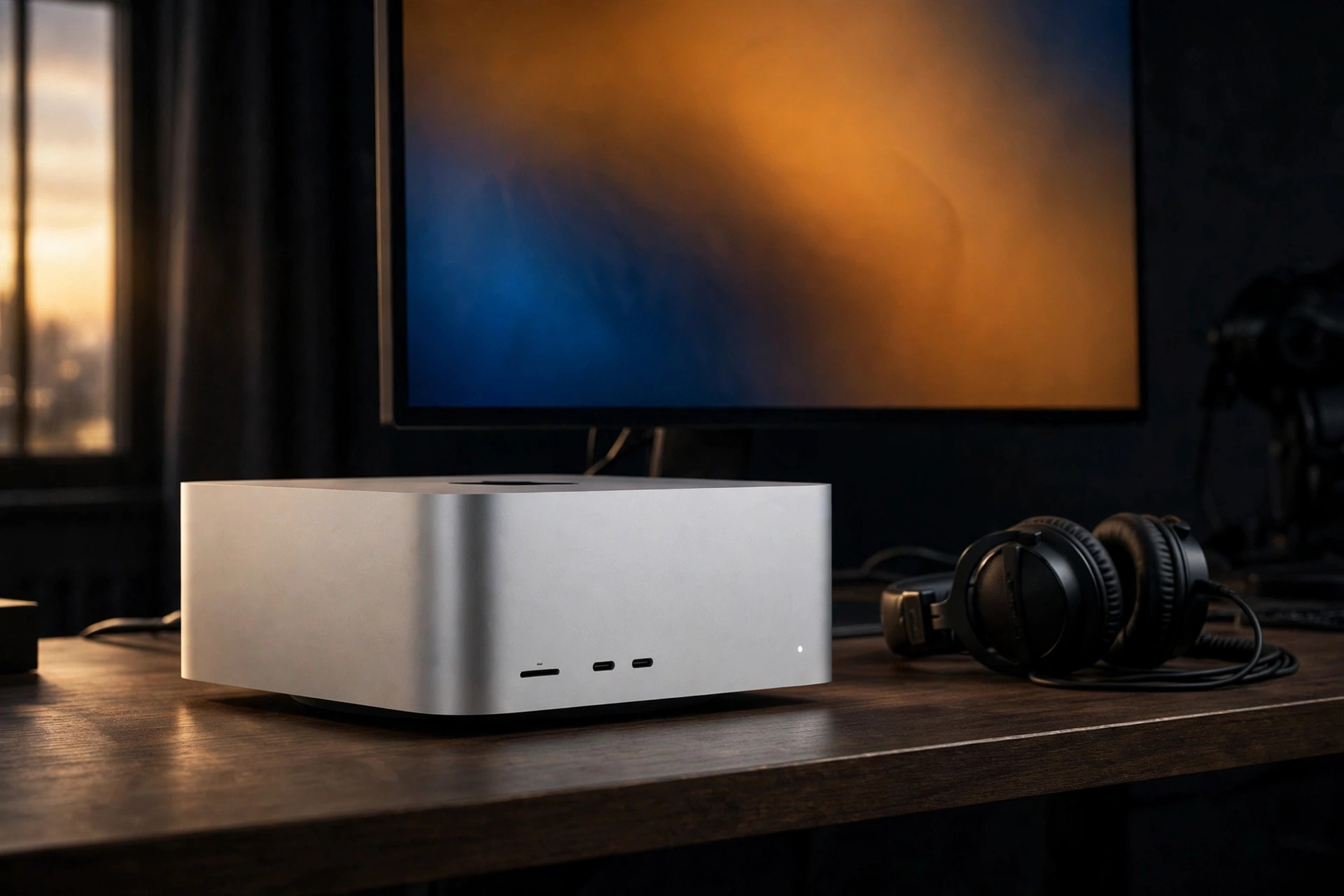
The short version
A Mac Studio is built for long work, and its fans are meant to be heard when the machine is under a sustained load. Loud fans during a render, export, or build are usually the cooling system doing its job. Loud fans at idle, with nothing demanding running, are the case worth investigating.
Work through the checks below in order. Most noise problems end at the workload or the placement, long before a fan setting is the right tool.
Check the workload first
Open Activity Monitor and sort by CPU, then check the GPU history as well. A process that holds a core or the GPU busy will keep the fans working even when you are not touching the machine.
- Background renders and exports that you started earlier and forgot.
- Photo library indexing and analysis, which can run for a long time after an import.
- Backups and sync jobs that are catching up.
- A new process that arrived with a recent update. Note its name, since a one-time catch-up task is different from one that never settles.
If the noise follows a task and the fans quiet down when it ends, the Mac is behaving normally. If they stay loud after everything visible has finished, keep reading.
Placement and airflow
The Mac Studio draws air in through the perforated base and exhausts it at the rear. That design sets the placement rules: a hard, flat surface under it, clear space behind it, and no enclosed, unventilated cabinet around it.
- Keep the base on a hard flat surface. Soft surfaces and cloth can block the intake.
- Leave clearance at the rear so the exhaust air has somewhere to go.
- Do not run it inside an enclosed cabinet or a shelf with no ventilation.
- Consider the room. A warm room, or one with direct sun on the desk, makes the same workload louder.
Read the temperatures before changing anything
Noise tells you the fans are working. Temperatures tell you how hard the machine is working to keep up. Free monitoring such as Smart Breeze shows temperatures and fan activity in the menu bar without changing any fan setting. The check Mac temperature guide covers how to read them and what to compare.
Judge a long job by where temperatures settle after an hour, not by the first ten minutes. A steady plateau under a heavy load is a very different picture from temperatures that keep climbing, or from a Mac that stays warm after the work has stopped.
NoteCompare like with like
Record the same job, in the same room, with the same placement, before and after any change. One change at a time is the only way to know what helped.
Restart and stay current
A full restart clears stuck processes, which is a common reason for fans that stay busy with nothing to show for it. Apple silicon Macs have no separate SMC reset ritual, so a normal restart is the reset. Keep macOS updated, since updates can also settle a background task that was misbehaving.
Run Apple Diagnostics when something looks wrong
Run Apple Diagnostics instead of tuning fans when you see any of these:
- The fans are loud at idle and the vents are clear.
- You hear rattling or grinding.
- The Mac shuts down unexpectedly.
- A long-stable pattern suddenly changes.
WarningFan control is not a repair
Do not use a fan setting to cover up a mechanical noise or a pattern that has changed. Return to System control, run Apple Diagnostics, and contact Apple Support if it reports a problem.
When the load is real and long
Some Studio work is simply long: overnight renders, big builds, large batch jobs. If the checks above are clean and the noise is the price of that work, the useful tool is one smooth Smart Boost curve rather than a fixed maximum speed. A smooth curve raises airflow gradually as temperatures rise, so the fans do not sit at one loud speed for hours. A fixed maximum trades hours of noise for no clear gain.
The setup, supported models, and limits are covered in Mac Studio fan control. Start from the placement and temperature checks, and add a curve only for the job that repeats.
Sources
- Keep your Mac laptop within acceptable operating temperatures (Apple Support)
- Use Apple Diagnostics to test your Mac (Apple Support)
More from the guides
 How to check Mac temperature and keep the reading honestCheck Mac temperature with the right sensor context, validate that readings refresh, and pair them with Activity Monitor and macOS thermal state.Mac thermal fundamentals
 Why is my MacBook fan loud? Diagnose the workload before the fanFind out why a MacBook fan is loud by checking workload, ventilation, power mode, actual RPM, and thermal pressure before changing control.Troubleshooting
 Use Apple Diagnostics for fan and thermal symptomsRun Apple Diagnostics on an Apple-silicon Mac, understand what a reference code means, and pair it with workload and fan evidence without overclaiming.Troubleshooting
 SMC reset on Apple silicon: restart instead of following Intel ritualsApple silicon Macs do not use the Intel SMC-reset key sequences. Learn what Apple recommends and what a restart can and cannot fix.Troubleshooting
Free monitoring shows temperatures and fan activity from the menu bar, so you can judge a long job by where it settles. Download Smart Breeze
