
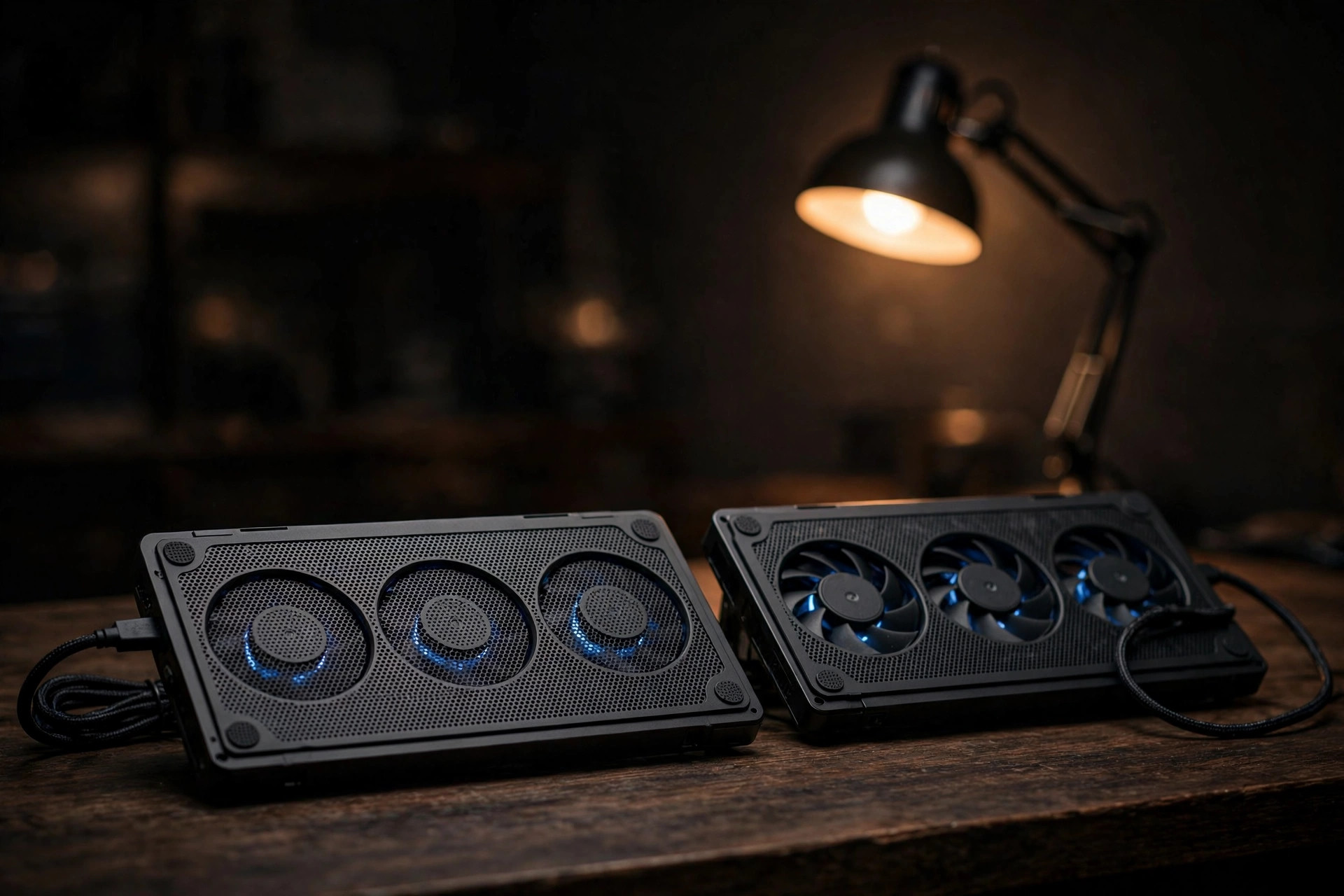
Separate the four things sold as “cooling”
| Change | Possible effect | Question to test |
|---|---|---|
| Elevation | Creates clearance around the underside or rear and changes screen and keyboard position. | Does the same height without powered fans produce the result? |
| External airflow | Moves room air across the enclosure or toward openings, depending on pad and Mac geometry. | Does powered airflow beat the same pad switched off? |
| Surface | Replaces a soft or insulating surface with a stable platform. | Would a plain desk solve the obstruction just as well? |
| Noise | Adds one or more small fans and vibration near the user. | Is the measured result worth the acoustic and ergonomic cost? |
Apple recommends using a Mac laptop on a stable work surface with good ventilation and keeping vents unobstructed. That baseline costs nothing. A bed, pillow, lap, thick cloth, or poorly aligned pad can restrict airflow regardless of the product’s fan count.
Inspect the fit before powering the pad
- Identify your exact Mac model and where its openings, hinge exhaust area, feet, and lower-case seams sit. Do not assume another generation shares the same airflow path.
- Confirm the pad supports the Mac without covering openings, pressing the display hinge, rocking under typing, or letting the computer slide.
- Keep cables out of exhaust paths and avoid a stand angle that sharply bends a connected cable or pulls on a port.
- If the pad is USB-powered, record which source powers it. Drawing from the Mac changes the battery test and can add another device to the system.
- Check the manufacturer’s return policy, fan controls, rated dimensions, and noise information. A larger marketing RPM number does not establish airflow through your Mac.
WarningDo not open the Mac for this comparison
A consumer pad test should not require removing the lower case, defeating feet, covering vents, or attaching material to the enclosure. Internal cleaning or repair has different risks and should follow Apple or qualified service guidance.
Use an A–B–B–A field test
A single before-and-after run confuses the pad with room drift, cache state, starting temperature, and workload variation. An A–B–B–A sequence places the baseline on both sides of the pad condition and makes large drift easier to spot.
- A1: desk baseline: stable hard surface, no pad, System fan mode, fixed workload, fixed duration.
- B1: pad condition: same workload and mode, pad in the marked position at a declared speed.
- B2: pad repeat: reset to the same starting band and repeat without changing the pad.
- A2: desk repeat: remove the pad, restore the marked desk position, and repeat the baseline.
For a powered pad, add a second comparison of the same pad and height with its fans off versus on. That isolates elevation from powered airflow. Do not add a new internal fan curve in the same series.
Record enough detail to reproduce the result
Mac/model · macOS/build · Smart Breeze/build · fan topology
Workload/version/input · run duration · cache state
Room °C · surface · lid/display setup · power source/mode
Pad/model · angle/height · fan setting · power source · Mac position
Internal mode: System for every run
Start/plateau/peak °C · fan RPM · thermal pressure · workload result · noise notes
Measure room temperature near the setup, not across the building. Mark the Mac and pad positions. Use the same charger, displays, lid position, workload input, warm-up, and run duration. If you record sound, keep microphone or meter distance, room, weighting, and background floor fixed.
MethodDecide what would count before you test
Examples include a repeatable change in sustained selected-sensor temperature, macOS thermal pressure, workload completion, or total noise at the listening position. “The graph looked lower once” is not a decision rule.
Test the pad and the internal curve separately
On a Mac with discovered fan topology, a Smart Breeze curve changes when the internal fans request extra airflow. A pad changes the external physical condition. If both change together, you cannot tell which produced the result or whether the combination was necessary.
- Finish the pad A–B–B–A series in System mode.
- Choose the physical setup you actually intend to use.
- Run a separate System-versus-Smart Boost comparison in that fixed setup.
- If a custom curve is justified, revise one point from the observed trace and repeat the workload.
- Keep acoustic results separate: external pad fans and earlier internal fan RPM can trade temperature for two different noise sources.
WarningNo control bypass where no fans are discovered
Smart Breeze enables fan control only where it discovers a complete fan topology. Keep System selected where no fans are discovered. A pad result does not qualify private SMC writes.
A fanless Mac stays fanless
MacBook Air models without internal fans cannot gain internal fan control from an app. External airflow or elevation may change the physical conditions, but evaluate that with the same workload method and do not represent it as an internal-fan upgrade.
Build 21 had a specific monitoring defect: on one tested fanless M5 MacBook Air, installation succeeded but the hardware snapshot stopped after the fan-count key was unavailable, so temperature categories never appeared. Build 37 continues read-only discovery without that key and adds a Thermal Sensors explorer, and the updated path has been verified on the M5 Air. Do not install or repair the privileged fan helper to chase readings on a fanless Mac.
Make the buying decision from the repeated result
| Result | Reasonable conclusion |
|---|---|
| Desk and pad-off elevation perform alike | Powered fans have not yet shown value; a stable stand may meet the measured need. |
| Pad-on repeats differ from both pad-off runs | Powered airflow changed this measured setup; report the magnitude, variability, noise, and exact conditions. |
| A1 and A2 differ substantially | The baseline drifted. Repeat before attributing a result to the pad. |
| Temperature changes but workload does not | Report a thermal or acoustic tradeoff, not a performance gain. |
| New rattle, shutdown, swelling, or fan fault | Stop the experiment, return software control to System, and diagnose or service the Mac. |
Sources
- Keep your Mac laptop within acceptable operating temperatures (Apple Support)
- Find the model name and serial number of your Mac (Apple Support)
- Use Apple Diagnostics to test your Mac (Apple Support)
- Smart Breeze compatibility and fanless behavior (Smart Breeze)
- Smart Breeze Build 37 known issues (Smart Breeze)
More from the guides
 Mac thermal fundamentalsWhat is a normal Mac temperature? Use context, not one magic numberThere is no single normal internal temperature for every Mac. Learn how workload, thermal state, trend, airflow, and ambient conditions change the answer.
 TroubleshootingMacBook running hot: a careful checklist before changing fansTroubleshoot a hot MacBook by separating case warmth, internal sensor trends, workload, airflow, thermal pressure, and possible hardware symptoms.
 Mac thermal fundamentalsHow to check Mac temperature and keep the reading honestCheck Mac temperature with the right sensor context, validate that readings refresh, and pair them with Activity Monitor and macOS thermal state.
 Fan curvesThe best Mac fan curve is a method, not a presetBuild a defensible Mac fan curve with a System baseline, one-variable tests, separate power-source curves, and clear keep-or-reject criteria.
Related docs: Read the M5 MacBook Air known issue, Check model compatibility
Smart Breeze enables fan control only where it discovers a complete fan topology. If your Mac stays in System, monitoring still works and the Kill switch is always available. Check compatibility