
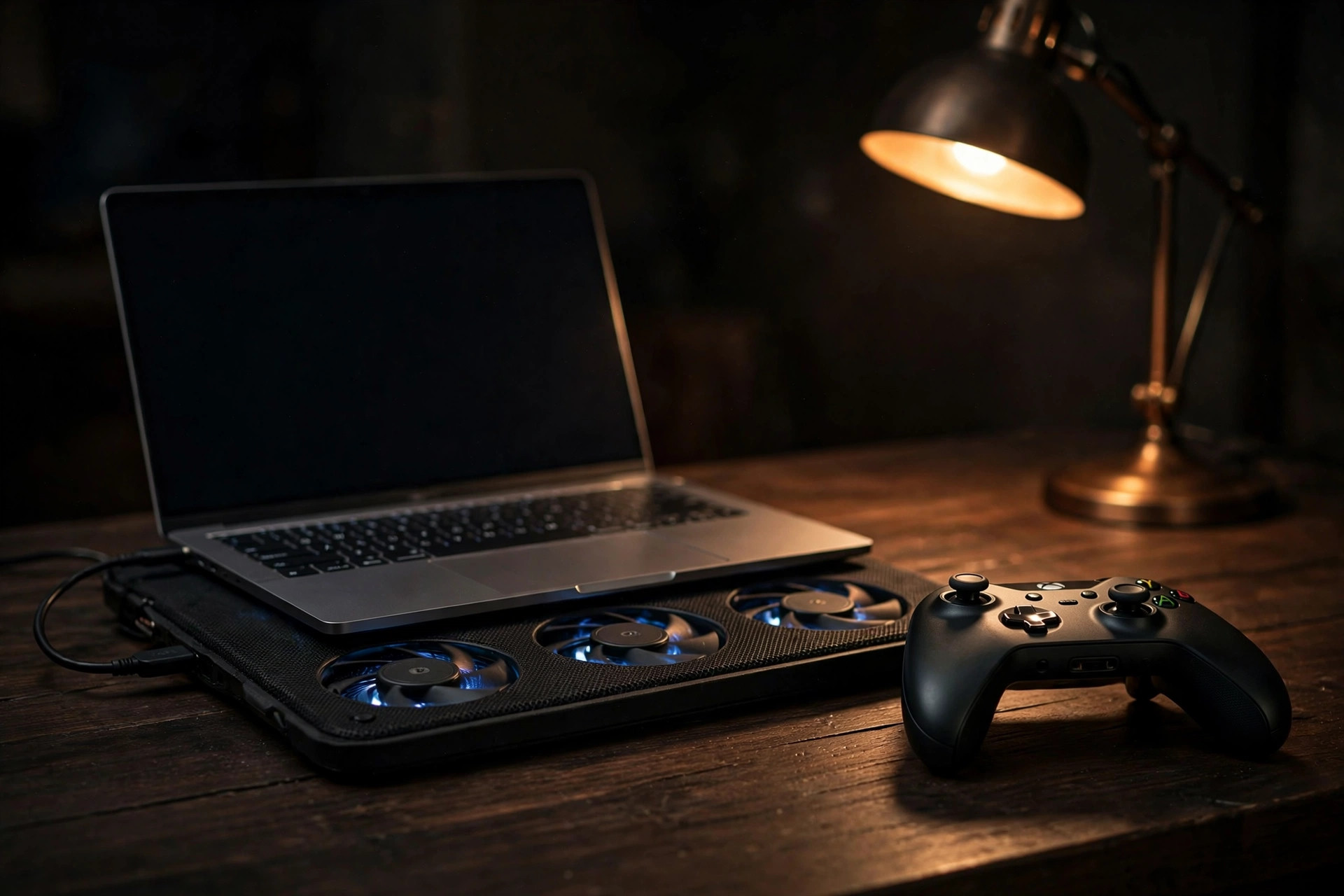
A temperature without context is not a diagnosis
A brief peak during shader compilation and a flat temperature during a forty-minute match are different events. So are 70 °F and 90 °F rooms, a capped and uncapped frame rate, and battery and adapter power. Record the conditions before deciding whether a number is ordinary, unusual, or useful.
Apple publishes an operating ambient range of 10–35 °C (50–95 °F) for Mac laptops and recommends a stable surface with unobstructed ventilation. Apple does not publish one internal CPU or GPU temperature that defines a healthy gaming session across every Mac. Third-party sensor readings also do not measure the outside of the enclosure and should not be used alone to diagnose hardware.
NoteStart with the system, not a folklore threshold
Use macOS thermal pressure, the shape of the temperature trace, fan response, workload behavior, and repeatability together. A higher internal reading under sustained work can be expected; an unexplained shutdown, burning smell, swelling, liquid exposure, or a new mechanical fan noise is a reason to stop testing.
Write a test card before opening the game
A test card makes the next run comparable. Keep it beside the result so another person, or you a week later, can reconstruct the session.
- Mac model identifier and chip, memory, macOS version and build, and Smart Breeze version/build.
- Game name and version, save or benchmark scene, resolution, quality preset, upscaler, ray-tracing setting if present, and frame cap.
- Display arrangement and refresh rate, controller or peripherals, and whether an external display is powering or charging the Mac.
- Adapter or battery, macOS Power Mode, starting battery percentage, and every in-game power or performance option.
- Room temperature measured near the Mac, surface, stand or pad, vent clearance, and lid position.
- Cold or warm start, warm-up duration, measured duration, fan mode, sensor source, and curve name.
Mac model · macOS 26.x (build …) · Smart Breeze (build …)
Game/build: … · scene: … · 2560×1440 · preset: … · cap: 60 fps
Power: adapter · macOS Power Mode: Automatic · battery start: …%
Room: …°C · desk · lid open · no stand · internal display only
Warm-up: 10 min · measured run: 30 min · mode: System
Run System mode first
System mode is the baseline because macOS retains fan ownership. Quit unrelated heavy tasks, allow the Mac to settle, then launch the same scene. Give shader compilation and asset loading time to finish before starting the measured interval unless those events are the thing you intend to test.
- Let the Mac reach a stable idle condition and note the starting temperature, fan RPM, battery level, and thermal-pressure state.
- Warm the game for a fixed interval, then begin the same route, replay, benchmark, or save-state sequence.
- Run long enough to expose the sustained trend, often at least 20–30 minutes, without changing graphics, frame cap, windows, or power.
- Record the selected sensor, temperature trace, actual fan RPM, thermal pressure, and a game-side result such as frame-time data when the game provides it.
- End the run at the planned time, return to System if you changed modes, and let the machine settle before another run.
MethodA screenshot is context, not a sample set
Capture the trace over time and the exact interval. A single hottest reading cannot tell you how long it lasted, what caused it, or whether a cooling change affected the workload.
Read five signals together
| Signal | What it can establish | What it cannot establish alone |
|---|---|---|
| Temperature trend | Whether a selected sensor climbed, stabilized, oscillated, or produced a short peak. | A universal safe limit, hardware health, or the presence of throttling. |
| Fan RPM | How the physical fans responded and whether actual speed followed a requested target. | Why a game slowed down, or what a fanless Mac should report. |
| macOS thermal pressure | The operating system’s broad assessment of current thermal conditions. | Which game subsystem caused pressure or an exact component temperature. |
| Frame time or benchmark result | Whether the chosen workload behaved differently during the measured interval. | That cooling caused the difference without matched repeat runs. |
| Activity Monitor | Whether another process consumed substantial CPU during the session. | A complete GPU performance or thermal diagnosis. |
Prefer medians, sustained plateaus, time spent in a defined state, and repeated runs over one maximum. If the second System run differs sharply from the first, the experiment is not stable enough to judge a fan change.
Test earlier airflow as one controlled variable
On a Mac with discovered fan topology, Smart Boost converts a live sensor reading into a bounded fan target and never requests less airflow than macOS was already asking for. It engages only after the selected reading crosses the first curve point and releases to System after the configured hysteresis and cooldown. That differs from holding one fixed RPM for the entire session.
- Duplicate the System test card, changing only the cooling mode or one curve revision.
- Choose CPU, GPU, or Any Sensor from observed behavior, not from the game genre. A title can shift bottlenecks between scenes.
- Begin with a built-in profile. If customizing, move one point at a time and preserve a rising, bounded curve.
- Repeat the same warm-up and measured route, then run the condition again to check repeatability.
- Report temperature and noise changes separately from frame-time or benchmark changes. Do not turn correlation into a performance claim.
WarningHardware discovery gate
Smart Breeze enables fan writes only where it discovers a complete fan topology. Where no fans are discovered, keep System selected. Do not install or repair the helper to bypass that gate.
Common ways a gaming test lies
- Comparing the first run, which compiled shaders, with a later cached run.
- Changing a frame cap, resolution, upscaler, scene, display, Power Mode, or charger along with the fan curve.
- Starting one run cold and the other immediately after a sustained workload.
- Calling a lower temperature a performance gain without recording a workload-side result.
- Using Max in one run and a curve plus an external cooling pad in the other, which changes multiple variables.
- Treating a sensor category as Apple-published component metadata. Smart Breeze groups known AppleSMC keys; availability and labeling are model-specific.
Know when to stop tuning and diagnose
Return to System if actual RPM does not follow a Smart Breeze target, a helper warning appears, sensor readings disappear, or control recovery is incomplete. Save Smart Breeze diagnostics before changing more settings. If a fan-equipped Mac reports persistent fan or thermal symptoms under ordinary macOS control, disconnect nonessential peripherals, update macOS, and run Apple Diagnostics using Apple’s model-appropriate startup procedure.
A curve is not a repair for obstructed vents, liquid or impact damage, a mechanically failing fan, battery swelling, or repeated shutdowns. Those require inspection or service rather than a more aggressive target.
Sources
- Keep your Mac laptop within acceptable operating temperatures (Apple Support)
- View CPU activity in Activity Monitor on Mac (Apple Support)
- Use Apple Diagnostics to test your Mac (Apple Support)
- Smart Breeze compatibility and hardware discovery (Smart Breeze)
- Smart Breeze safety model and verified System handoff (Smart Breeze)
More from the guides
 Fan curvesThe best Mac fan curve is a method, not a presetBuild a defensible Mac fan curve with a System baseline, one-variable tests, separate power-source curves, and clear keep-or-reject criteria.
 Fan curvesMac fan curves: what the points actually controlLearn how a temperature-to-fan curve works on a Mac, how Smart Breeze maps each point to a bounded RPM target, and how Smart Boost returns control to macOS.
 Mac thermal fundamentalsWhat is a normal Mac temperature? Use context, not one magic numberThere is no single normal internal temperature for every Mac. Learn how workload, thermal state, trend, airflow, and ambient conditions change the answer.
 Mac thermal fundamentalsMac thermal throttling: how to identify it without guessingLearn what thermal throttling means on a Mac, which evidence matters, and how to run a repeatable test before changing cooling behavior.
Related docs: Check compatibility, Understand the safety model, Troubleshoot monitoring and control
Download Smart Breeze. Fan control works on any fan-equipped Apple-silicon Mac where a complete fan topology is discovered. Download Smart Breeze